
FAQs

Below you can find the answer to your question.
If you are searching in your language and you are not getting any results, please try in English. The content may not yet be translated.

Couldn't find the answer? Please try our AI assistant or contact us.

To access your tests for the AD 5 graduates’ competition:

  1. Access to your account in the Single Candidate Portal (SCP). 
  2. Open the invitation letter. 
  3. Click the link to the TAO Portal. 
  4. Click on the EU Login button.

You will find two slots in your TAO test environment:

  1. Prerequisite test and 
  2. AD5 Reasoning test (Verbal, Numerical and Abstract Reasoning Tests)

The deadline to complete the mandatory prerequisite check is 6 November 2026 at 11:59 am Brussels time.

The time slot for your tests is indicated in the test environment: EN_AD-427_VNAR

  • EN refers to EU language code = your test language that you have chosen
  • AD-427 = Competition Reference Number AD 427 for Graduates competition
  • VNAR = Verbal, Numerical and Abstract Reasoning Tests
  • Your individual test date and time. Please note that if the date and time are not clearly visible, you should zoom in or out until they appear clearly. The test date or time of your test cannot be changed due to prior private or professional commitments which do not fall under our Force Majeure policy.

To access your pre-requisite test or test, you must be logged in to your EU Login account on the computer you will use for testing. Please keep in mind that you need full administrator rights on the computer or laptop you will use for testing; corporate-issued devices typically do not provide these privileges.


Nevertheless, you can access your EU Login account from multiple computers. However, regardless of which device you use, you must:

  • enter your EU Login username and password, and
  • complete the second authentication step using your registered second-factor authentication method. 


If your only second-factor authentication method is the ‘Trusted Platform’ on one device  (e.g. Windows Hello or Touch ID), you will only be able to sign in from that specific device. 

Therefore, we strongly recommend that you add at least one backup authentication method, for example:

  • EU Login mobile app (recommended)
    You can install the app on your phone and use it to authenticate when signing in from another computer. For more information, please see: How to add a mobile device and EU login App.
  • Security key (e.g. a USB key)
    If you already have one, you can also use it on different computers, provided they support it.


Your invitation letter contains your EU Login User ID, which is indicated at the top of the letter. 

If you are already logged in to EU Login with the correct User ID, open the TAO testing platform and click the white EU Login button to access the test environment. 

If you have problems accessing the EU Login account specified in your invitation letter, please contact the EU Login Helpdesk, which is best placed to assist with EU Login-related issues. For information on how to do so, consult the section “If you still cannot find a solution to your issue” towards the bottom of the EU Login common issues page.

Candidates must maintain access to the email address associated with their EU Login account throughout the selection procedure, as indicated in the Notice of Competition (Annex I to the General Rules, under ‘1. Basic provisions’) and in the instructions for creating an account in the Single Candidate Portal.

The following guidance may help you resolve issues when accessing your Single Candidate Portal (SCP) account or finding your application.

A. I cannot find my application in the Single Candidate Portal or am unsure which account I used. 

  1. Log in to your SCP account. 

  2. Go to My account > My applications > My submitted applications to find applications you have validated and submitted. 
  3. Scroll down and check My draft applications for applications that you have not submitted. 
     

If you cannot find your application, you may be accessing the wrong SCP account. This can happen if you have created more than one EU Login account, each linked to a separate SCP account. 

To identify the correct account, follow these steps. 

Step 1: Identify all the EU Login accounts linked to your email address(es). 

  • Retrieve the automatic email sent by the EU Login authentication service when you created your account. This email contains your User ID, which usually starts with “n00”. 

If you cannot find this email: 

  • Go to EU Login  
  • Enter each of your email addresses and click “Next” to check whether an EU Login account exists for that address. 
  • If you do not remember your password, click “Lost your password?” and follow the instructions. 
  • Repeat these steps for each email address you may have used. 
     

Step 2: Once you have identified all your EU Login User IDs: 

Log in to the SCP using each EU Login User ID (not your email address) until you find the account containing your application(s). 

Each EU Login User ID has its own password and second-factor authentication settings. Make sure you use the password and second-factor authentication method associated with the account you are trying to access.

B. I have lost access to my second-factor authentication method, changed my phone or computer, or my authentication method is not working.

              Clear your browser cache or use an incognito/private window, and log in using your User ID (do NOT use your email address).

  • Enter your password.  

               If you do not remember your password, click “Lost your password?” and follow the instructions in the ‘How to change/reset my EU Login password? - EU Login Portal’ page. You will receive an email to reset your password. 

               If you do not receive the password reset email, check your spam folder and the other email addresses you may have used to create your EU Login account. 

              Once your password has been set or retrieved, select Password as the verification method from the dropdown menu, using the grey arrow.
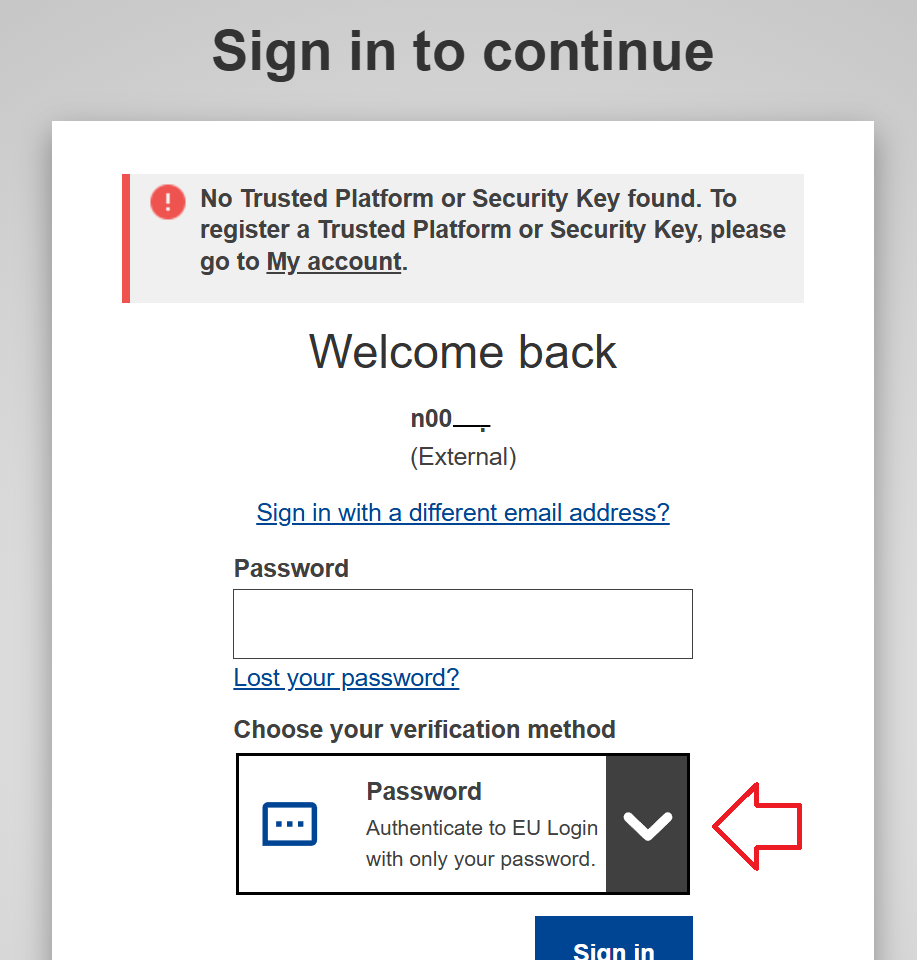
login form
  • After entering your password, click on your name in the top-right corner of the screen to access your account settings and verify that you are using the correct account. 
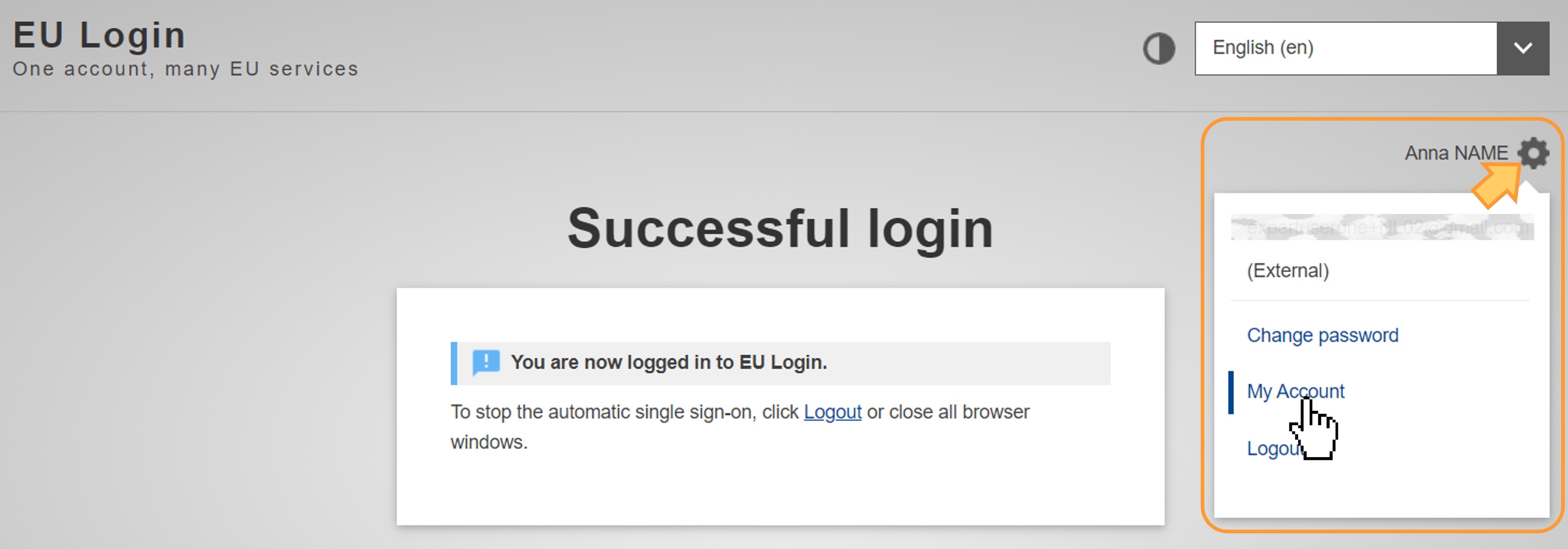
gear on the top-right

Under My account, you can manage or add your authentication methods, including your mobile devices and trusted platform. 

  • If you need to reset your authentication methods, for instance because you have changed your mobile phone or computer, click the “Panic button” to delete the devices associated with your User ID and set up your authentication again.
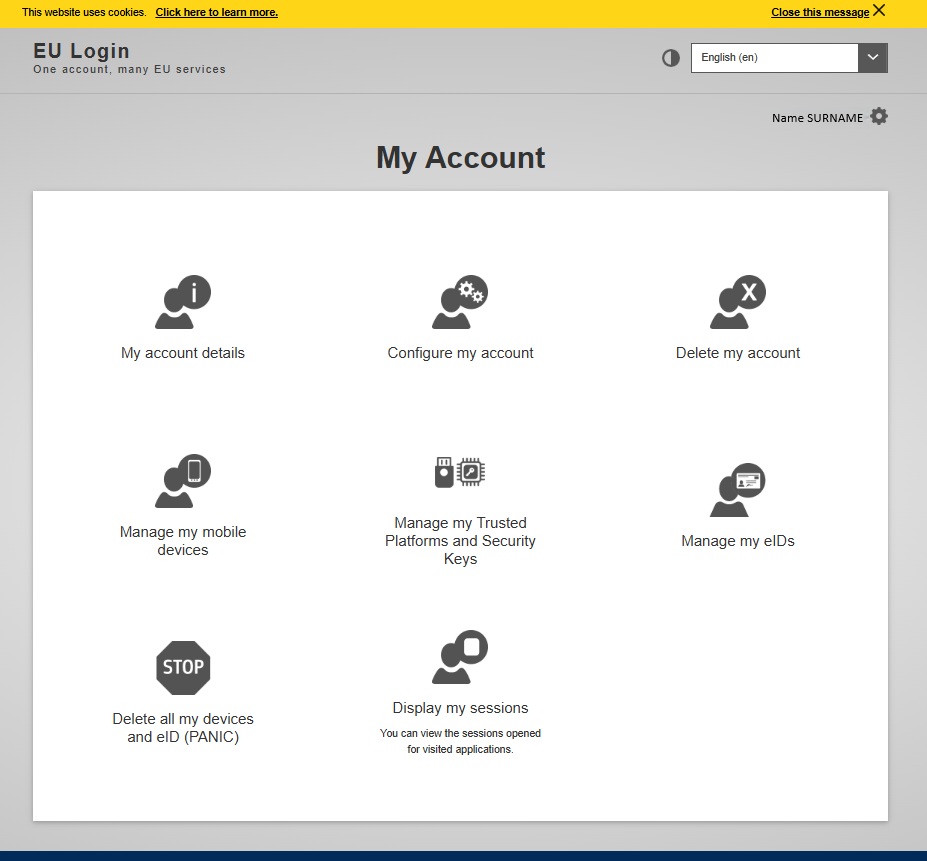
my account settings on eu login

For EPSO competitions, only the following authentication methods are accepted: 

Important: Do not use eID, Google or Facebook as authentication methods for EPSO competitions. 

You can now link multiple EU Login accounts to the same EU Login Mobile App. Step-by-step instructions are available here. 

Once you have completed these steps, you should be able to access the Single Candidate Portal.

C. Error message: “Too many requests coming from your IP address”.

This error may be caused by EU Login security mechanisms. 

If you are using a public or shared network, several users may appear to be connecting from the same IP address. This can trigger a security mechanism that temporarily blocks access from that IP address, usually for approximately 15 to 60 minutes. 

If possible, switch to a private network and try again after the temporary restriction has expired. 

D. I cannot see the “Password” option among the verification methods.

Open EU Login using a different browser from the one you usually use, clear your browser cache, or use an incognito/private window.

Enter your User ID, not your email address. You should then see the Password option in the list of verification methods.

Please note that you must still use a second-factor authentication method to access the Single Candidate Portal.

E. Error message: “you are currently logged in as user "n00xxxx" and cannot use an authentication factor registered to user "v00xxxx"/n00yyyy”. 

This means that you are trying to use the second-factor authentication method of one account to authenticate into another, different account. 

First, identify the account you used to apply. For EPSO competitions, it cannot be an account starting with v00. 

Then use the second-factor authentication method associated with that account. 

If you do not remember which second-factor authentication method you are using, you may need to reset your authentication methods using the “Panic” button.

F. Error message@ “Error 5350”. 

This probably means that you need to reset the authentication methods associated with your User ID and set them up again using the “Panic” button. 

If the issue persists and appears to be related to your EU Login account, please contact the EU Login Helpdesk. For information on how to do so, consult the section “If you still cannot find a solution to your issue” towards the bottom of the EU Login common issues page.

 

Sample questions and guidance materials can be found in the EPSO testing section of our website. Please note that these examples are provided for information purposes only and are not training materials. EPSO does not offer preparatory courses and does not endorse any external publications or training services. Some EU Member States may offer support or training for candidates. To find out whether such opportunities exist in your country, please contact the relevant national authorities directly.

For open competitions, detailed information about the tests is available in the Notice of Competition.

The AD5 selection process consists of two parts.

See how you are assessed in a simple and clear scheme and watch the last webinar available on youtube to better understand the process.

References to the source materials used to develop the EU Knowledge Test will be published on the EPSO website approximately two months before the date of the respective testing session.

See also: EPSO Testing - AD5 Graduates

No, you don’t need a certificate or a diploma to prove the knowledge of your languages. You will sit the tests in the 2 languages chosen by you in the application form. 

You must upload the copy of your diploma by 07/10/2026 at the latest. Please read the instructions on How to fill in the application form.

As a general rule, candidates must have obtained the minimum entry qualifications specified in the Notice of Competition or Call for Expression of Interest by the application deadline. Qualifications awarded after this date are not taken into account.

However, by way of exception, for competition EPSO/AD/427/26 (Graduate Administrators – AD5), candidates must have a level of education corresponding to completed university studies of at least three years, attested by a diploma, the award of which must have been decided no later than 30 September 2026, regardless of the application deadline. Please see Annex III of the Notice of Competition for examples of minimum qualifications.

Please note that, in order to benefit from reasonable adjustments for the selection tests, you will need to provide a certificate confirming your disability or medical condition issued by a competent national authority and/or a specialist.

Don’t forget to complete your application and submit the relevant form by the application deadline.

For full details, please visit our Reasonable accommodations for testing.