
What should I do if I have problems accessing my Single Candidate Portal account?
Candidates must maintain access to the email address associated with their EU Login account throughout the selection procedure, as indicated in the Notice of Competition (Annex I to the General Rules, under ‘1. Basic provisions’) and in the instructions for creating an account in the Single Candidate Portal.
The following guidance may help you resolve issues when accessing your Single Candidate Portal (SCP) account or finding your application.
A. I cannot find my application in the Single Candidate Portal or am unsure which account I used.
Log in to your SCP account.
- Go to My account > My applications > My submitted applications to find applications you have validated and submitted.
- Scroll down and check My draft applications for applications that you have not submitted.
If you cannot find your application, you may be accessing the wrong SCP account. This can happen if you have created more than one EU Login account, each linked to a separate SCP account.
To identify the correct account, follow these steps.
Step 1: Identify all the EU Login accounts linked to your email address(es).
- Retrieve the automatic email sent by the EU Login authentication service when you created your account. This email contains your User ID, which usually starts with “n00”.
If you cannot find this email:
- Go to EU Login
- Enter each of your email addresses and click “Next” to check whether an EU Login account exists for that address.
- If you do not remember your password, click “Lost your password?” and follow the instructions.
- Repeat these steps for each email address you may have used.
Step 2: Once you have identified all your EU Login User IDs:
Log in to the SCP using each EU Login User ID (not your email address) until you find the account containing your application(s).
Each EU Login User ID has its own password and second-factor authentication settings. Make sure you use the password and second-factor authentication method associated with the account you are trying to access.
B. I have lost access to my second-factor authentication method, changed my phone or computer, or my authentication method is not working.
- Open EU Login in your browser.
Clear your browser cache or use an incognito/private window, and log in using your User ID (do NOT use your email address).
- Enter your password.
If you do not remember your password, click “Lost your password?” and follow the instructions in the ‘How to change/reset my EU Login password? - EU Login Portal’ page. You will receive an email to reset your password.
If you do not receive the password reset email, check your spam folder and the other email addresses you may have used to create your EU Login account.
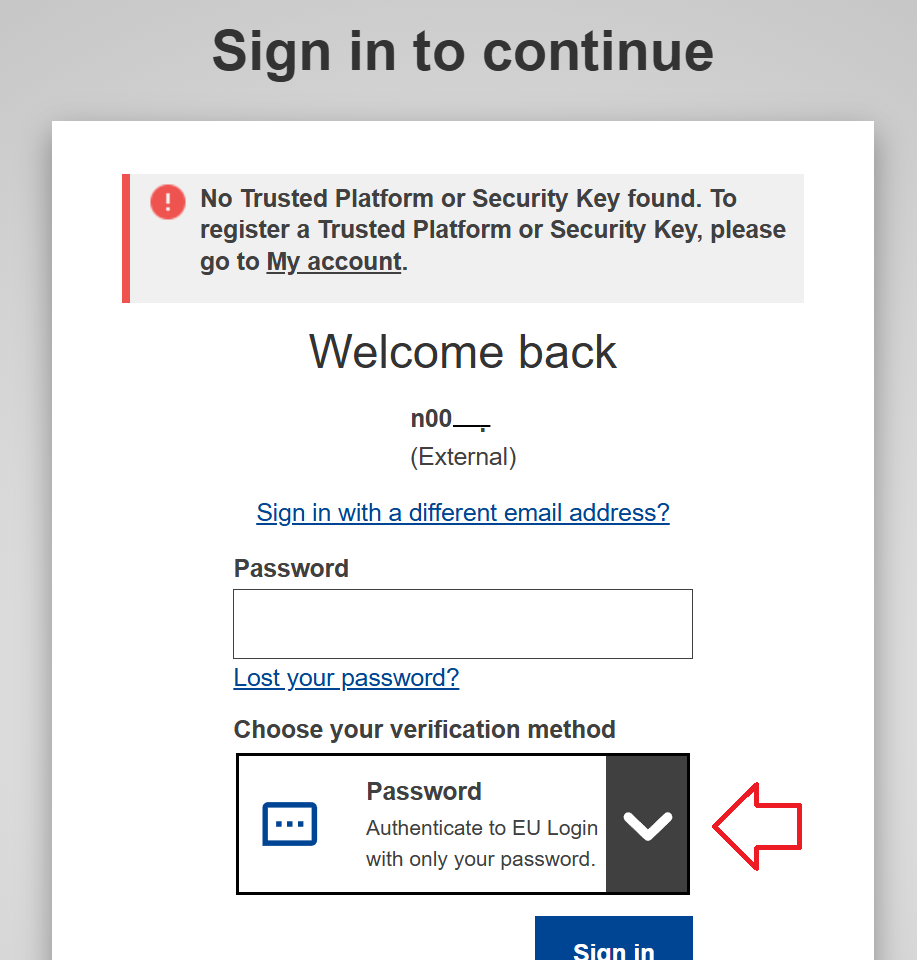
Once your password has been set or retrieved, select Password as the verification method from the dropdown menu, using the grey arrow.
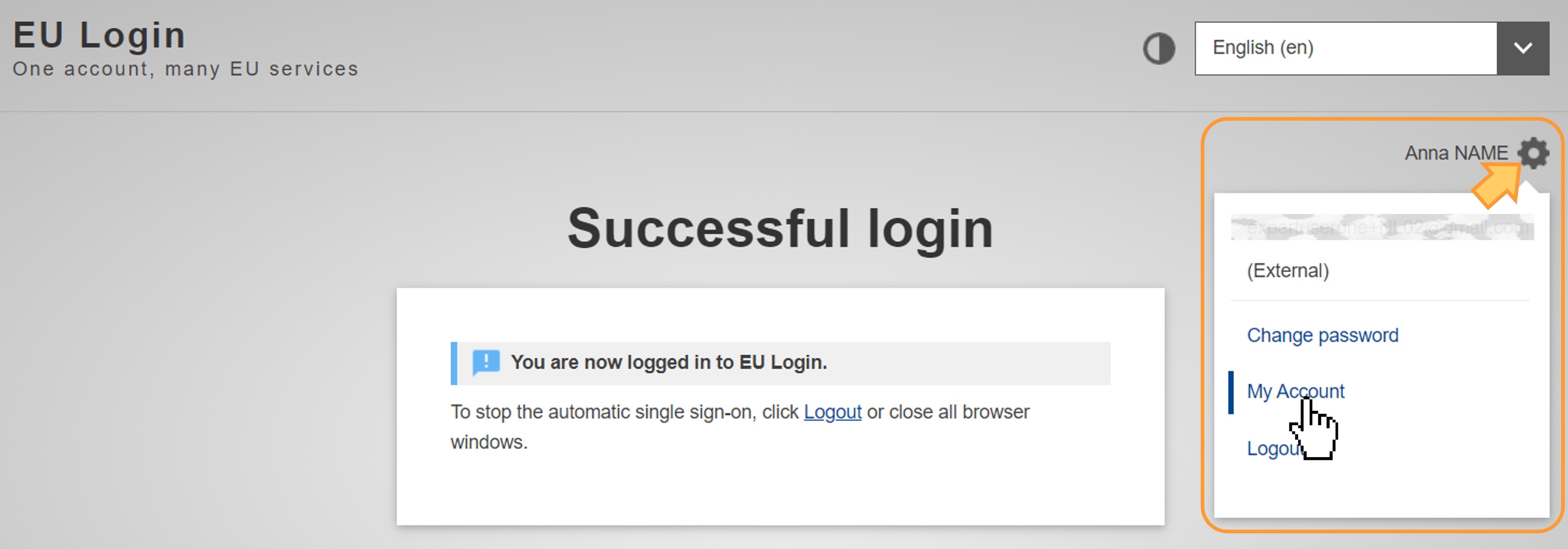
- After entering your password, click on your name in the top-right corner of the screen to access your account settings and verify that you are using the correct account.
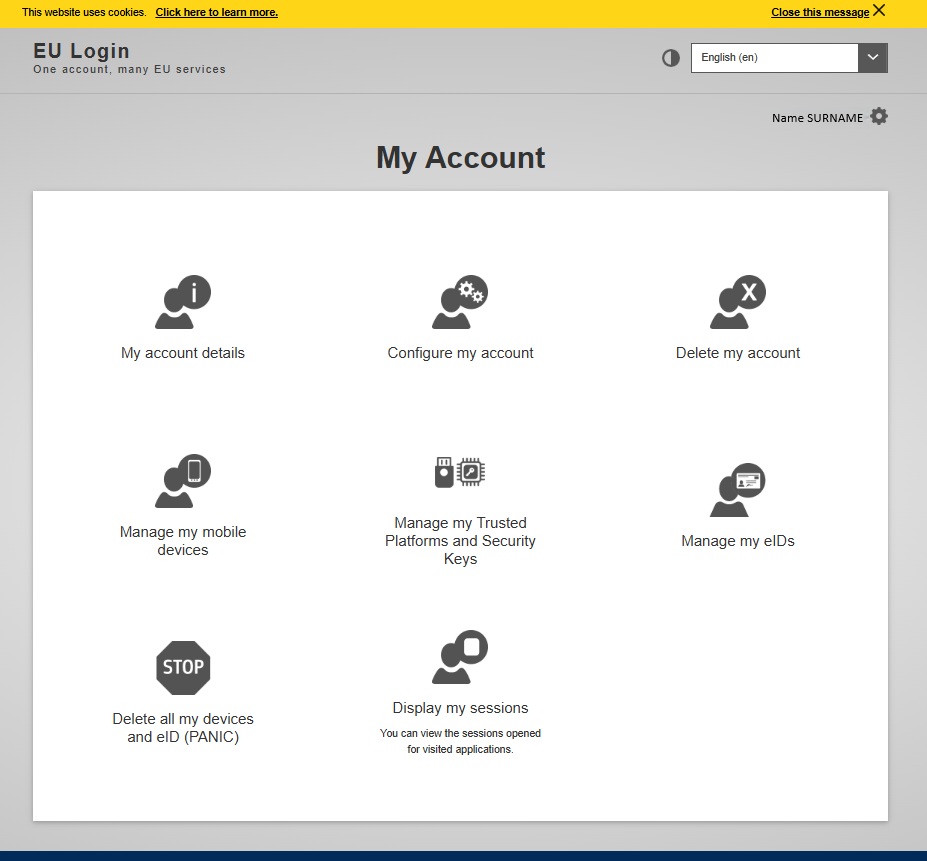
Under My account, you can manage or add your authentication methods, including your mobile devices and trusted platform.
- If you need to reset your authentication methods, for instance because you have changed your mobile phone or computer, click the “Panic button” to delete the devices associated with your User ID and set up your authentication again.
For EPSO competitions, only the following authentication methods are accepted:
- EU Login Mobile app: see How to add a mobile device and EU login App
- The Trusted Platform: see How to add a trusted platform
Important: Do not use eID, Google or Facebook as authentication methods for EPSO competitions.
You can now link multiple EU Login accounts to the same EU Login Mobile App. Step-by-step instructions are available here.
Once you have completed these steps, you should be able to access the Single Candidate Portal.
C. Error message: “Too many requests coming from your IP address”.
This error may be caused by EU Login security mechanisms.
If you are using a public or shared network, several users may appear to be connecting from the same IP address. This can trigger a security mechanism that temporarily blocks access from that IP address, usually for approximately 15 to 60 minutes.
If possible, switch to a private network and try again after the temporary restriction has expired.
D. I cannot see the “Password” option among the verification methods.
Open EU Login using a different browser from the one you usually use, clear your browser cache, or use an incognito/private window.
Enter your User ID, not your email address. You should then see the Password option in the list of verification methods.
Please note that you must still use a second-factor authentication method to access the Single Candidate Portal.
E. Error message: “you are currently logged in as user "n00xxxx" and cannot use an authentication factor registered to user "v00xxxx"/n00yyyy”.
This means that you are trying to use the second-factor authentication method of one account to authenticate into another, different account.
First, identify the account you used to apply. For EPSO competitions, it cannot be an account starting with v00.
Then use the second-factor authentication method associated with that account.
If you do not remember which second-factor authentication method you are using, you may need to reset your authentication methods using the “Panic” button.
F. Error message@ “Error 5350”.
This probably means that you need to reset the authentication methods associated with your User ID and set them up again using the “Panic” button.
If the issue persists and appears to be related to your EU Login account, please contact the EU Login Helpdesk. For information on how to do so, consult the section “If you still cannot find a solution to your issue” towards the bottom of the EU Login common issues page.