
FAQs

Below you can find the answer to your question.
If you are searching in your language and you are not getting any results, please try in English. The content may not yet be translated.

When a reserve list is published, EPSO receives a large number of requests for review (RfRs) at the same time.
In recent competitions, the number of RfRs has increased significantly, in some cases almost 10-fold, as more candidates reach the final stages of the selection process and receive detailed results at the same time.
Each request must be carefully examined. EPSO performs a pre-analysis of the RfRs to check for any material errors and to prepare the files before submitting them to the Selection Board.

The Selection Board then assesses all requests. This stage can take time due to the high volume of cases and the detailed nature of the review process. 

Replies can only be published once the Selection Board has finalised its work on all requests.

There is no legally defined deadline for handling RfRs. Based on recent experience since 2024, replies are typically published within 2 to 6 months after the deadline for submitting requests.

References to the source materials used to develop the EU Knowledge Test will be published on the EPSO website approximately two months before the date of the respective testing session.

See also: EPSO Testing - AD5 Graduates

The AD5 selection process consists of two parts.

See how you are assessed in a simple and clear scheme and watch the last webinar available on youtube to better understand the process.

You can apply for EU Careers opportunities if you meet the general eligibility requirements and the specific conditions set out for each selection procedure.

In general, you must:

  • Be a citizen of an EU Member State 
  • Meet the required level of education and, where applicable, professional experience 
  • Have knowledge of at least two EU official languages 

Requirements vary depending on the role and profile (e.g. administrator, assistant, contract staff).

For full details on eligibility requirements, please see the Eligibility requirements page.

Sample questions and guidance materials can be found in the EPSO testing section of our website. Please note that these examples are provided for information purposes only and are not training materials. EPSO does not offer preparatory courses and does not endorse any external publications or training services. Some EU Member States may offer support or training for candidates. To find out whether such opportunities exist in your country, please contact the relevant national authorities directly.

For open competitions, detailed information about the tests is available in the Notice of Competition.

The main differences between permanent officials, temporary agents and contract staff concern:

  • the type and duration of the contract, 
  • the selection procedure, 
  • and the nature of the duties performed. 

Permanent officials

Permanent staff are members of the EU civil service appointed for an indefinite duration. They constitute the core working force and are recruited through open competitions organised by EPSO. There are three categories for permanent EU officials: Administrators (AD), Assistants (AST) and Secretaries/Clerks (AST/SC).

Temporary agents

Temporary agents are recruited for fixed-term or temporary positions, often to perform specialised tasks or managerial functions. Selection procedures are usually organised directly by the recruiting EU institution, body or agency.

Contract staff

Contract staff are recruited under fixed-term contracts to carry out administrative, technical, operational or support tasks, or to provide additional capacity in specialised fields. They are recruited in four function groups (FG I–IV), depending on the responsibilities and qualifications required. The selection procedures for contract staff are organised by EPSO.

The eligibility requirements, contract conditions and career opportunities vary depending on the staff category and the position concerned.

The EU institutions, bodies and agencies offer different staff categories and contract types, depending on the nature and duration of the duties performed.

The main categories include:

  • Permanent officials (AD, AST, AST/SC) 
  • Contract staff 
  • Temporary agents 
  • Seconded National Experts (SNEs) 
  • Interim staff 
  • Trainees  

EPSO only organises the selection procedures for permanent and contract staff.

Selection procedures for other staff categories are generally managed directly by the EU institutions, bodies and agencies themselves.

 Find out more about:

EPSO does not disclose which recruiting service shortlisted candidates for testing. If successful in the reasoning tests, candidates will be contacted directly by interested recruiting services regarding the next stages of the recruitment process.

Candidates must maintain access to the email address associated with their EU Login account throughout the selection procedure, as indicated in the Notice of Competition (Annex I to the General Rules, under ‘1. Basic provisions’) and in the instructions for creating an account in the Single Candidate Portal.

The following guidance may help you resolve issues when accessing your Single Candidate Portal (SCP) account or finding your application.

A. I cannot find my application in the Single Candidate Portal or am unsure which account I used. 

  1. Log in to your SCP account. 

  2. Go to My account > My applications > My submitted applications to find applications you have validated and submitted. 
  3. Scroll down and check My draft applications for applications that you have not submitted. 
     

If you cannot find your application, you may be accessing the wrong SCP account. This can happen if you have created more than one EU Login account, each linked to a separate SCP account. 

To identify the correct account, follow these steps. 

Step 1: Identify all the EU Login accounts linked to your email address(es). 

  • Retrieve the automatic email sent by the EU Login authentication service when you created your account. This email contains your User ID, which usually starts with “n00”. 

If you cannot find this email: 

  • Go to EU Login  
  • Enter each of your email addresses and click “Next” to check whether an EU Login account exists for that address. 
  • If you do not remember your password, click “Lost your password?” and follow the instructions. 
  • Repeat these steps for each email address you may have used. 
     

Step 2: Once you have identified all your EU Login User IDs: 

Log in to the SCP using each EU Login User ID (not your email address) until you find the account containing your application(s). 

Each EU Login User ID has its own password and second-factor authentication settings. Make sure you use the password and second-factor authentication method associated with the account you are trying to access.

B. I have lost access to my second-factor authentication method, changed my phone or computer, or my authentication method is not working.

              Clear your browser cache or use an incognito/private window, and log in using your User ID (do NOT use your email address).

  • Enter your password.  

               If you do not remember your password, click “Lost your password?” and follow the instructions in the ‘How to change/reset my EU Login password? - EU Login Portal’ page. You will receive an email to reset your password. 

               If you do not receive the password reset email, check your spam folder and the other email addresses you may have used to create your EU Login account. 

              Once your password has been set or retrieved, select Password as the verification method from the dropdown menu, using the grey arrow.
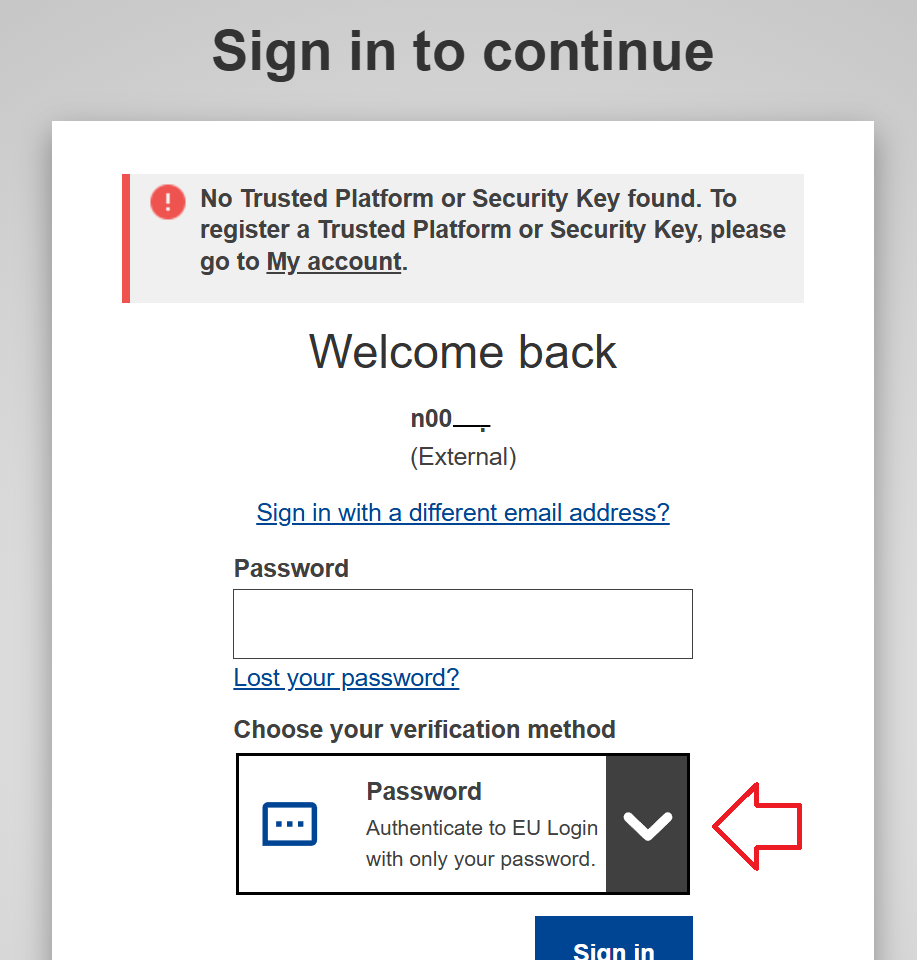
login form
  • After entering your password, click on your name in the top-right corner of the screen to access your account settings and verify that you are using the correct account. 
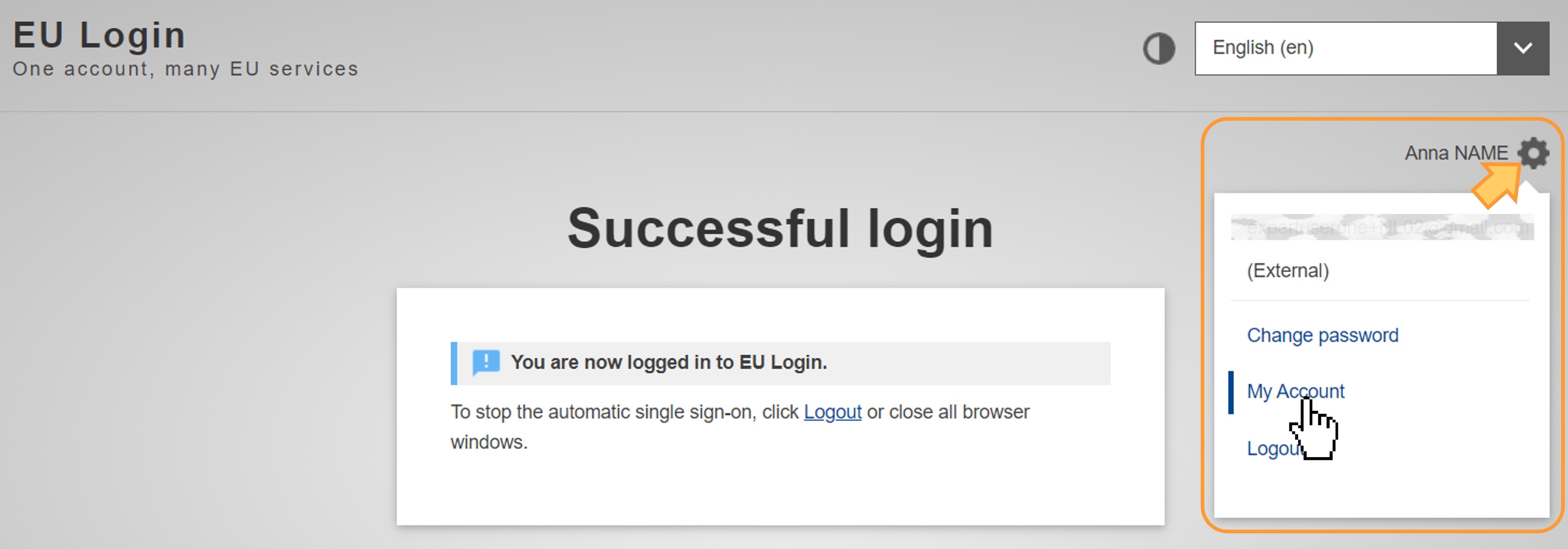
gear on the top-right

Under My account, you can manage or add your authentication methods, including your mobile devices and trusted platform. 

  • If you need to reset your authentication methods, for instance because you have changed your mobile phone or computer, click the “Panic button” to delete the devices associated with your User ID and set up your authentication again.
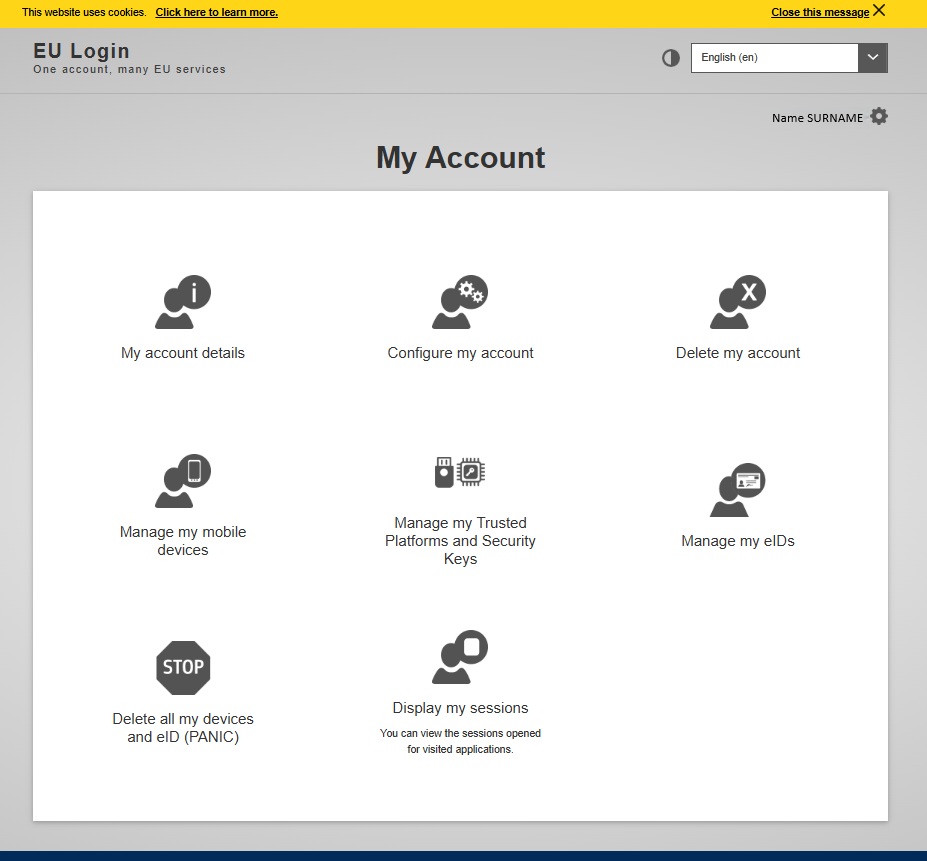
my account settings on eu login

For EPSO competitions, only the following authentication methods are accepted: 

Important: Do not use eID, Google or Facebook as authentication methods for EPSO competitions. 

You can now link multiple EU Login accounts to the same EU Login Mobile App. Step-by-step instructions are available here. 

Once you have completed these steps, you should be able to access the Single Candidate Portal.

C. Error message: “Too many requests coming from your IP address”.

This error may be caused by EU Login security mechanisms. 

If you are using a public or shared network, several users may appear to be connecting from the same IP address. This can trigger a security mechanism that temporarily blocks access from that IP address, usually for approximately 15 to 60 minutes. 

If possible, switch to a private network and try again after the temporary restriction has expired. 

D. I cannot see the “Password” option among the verification methods.

Open EU Login using a different browser from the one you usually use, clear your browser cache, or use an incognito/private window.

Enter your User ID, not your email address. You should then see the Password option in the list of verification methods.

Please note that you must still use a second-factor authentication method to access the Single Candidate Portal.

E. Error message: “you are currently logged in as user "n00xxxx" and cannot use an authentication factor registered to user "v00xxxx"/n00yyyy”. 

This means that you are trying to use the second-factor authentication method of one account to authenticate into another, different account. 

First, identify the account you used to apply. For EPSO competitions, it cannot be an account starting with v00. 

Then use the second-factor authentication method associated with that account. 

If you do not remember which second-factor authentication method you are using, you may need to reset your authentication methods using the “Panic” button.

F. Error message@ “Error 5350”. 

This probably means that you need to reset the authentication methods associated with your User ID and set them up again using the “Panic” button. 

If the issue persists and appears to be related to your EU Login account, please contact the EU Login Helpdesk. For information on how to do so, consult the section “If you still cannot find a solution to your issue” towards the bottom of the EU Login common issues page.

 

To access your pre-requisite test or test, you must be logged in to your EU Login account on the computer you will use for testing. Please keep in mind that you need full administrator rights on the computer or laptop you will use for testing; corporate-issued devices typically do not provide these privileges.


Nevertheless, you can access your EU Login account from multiple computers. However, regardless of which device you use, you must:

  • enter your EU Login username and password, and
  • complete the second authentication step using your registered second-factor authentication method. 


If your only second-factor authentication method is the ‘Trusted Platform’ on one device  (e.g. Windows Hello or Touch ID), you will only be able to sign in from that specific device. 

Therefore, we strongly recommend that you add at least one backup authentication method, for example:

  • EU Login mobile app (recommended)
    You can install the app on your phone and use it to authenticate when signing in from another computer. For more information, please see: How to add a mobile device and EU login App.
  • Security key (e.g. a USB key)
    If you already have one, you can also use it on different computers, provided they support it.


Your invitation letter contains your EU Login User ID, which is indicated at the top of the letter. 

If you are already logged in to EU Login with the correct User ID, open the TAO testing platform and click the white EU Login button to access the test environment. 

If you have problems accessing the EU Login account specified in your invitation letter, please contact the EU Login Helpdesk, which is best placed to assist with EU Login-related issues. For information on how to do so, consult the section “If you still cannot find a solution to your issue” towards the bottom of the EU Login common issues page.